Archive for the 'Mac OS' Category

Leopard review part 7: Preview

Thursday, May 8th, 2008

Many of the core applications in Mac OS X have been significantly upgraded in Leopard. I’ve already taken a look at Mail and iCal in my review. Here I’ll concentrate on Preview, Apple’s PDF and image viewer.

As the built-in apps go, Preview is a bit of an unsung hero. It pops up when you view a PDF, then you close it when you’re done - you don’t tend to think about it much. However, it’s a supremely useful and well-written application, and with the release of Leopard, it’s now even better.

Preview in Leopard

Annotation

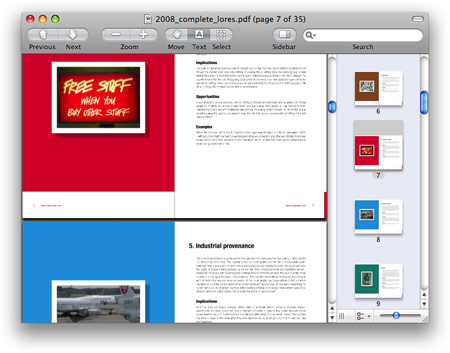
Preview in Leopard has vastly improved annotation features. You can highlight text, and add sticky notes, ovals, rectangles, and URL links. (I was disappointed that you can’t constrain ovals to circles and rectangles to squares, but hey, you can’t have everything I suppose.) You can add your name to annotations too (enabled by default in Preferences > General). All annotations are retained when you save the PDF.

Here I highlighted some text in a PDF (which, by the way, is from the excellent book Future Files, by my good friend Richard Watson), and also added a note:

Adding a note and highlighting text in Leopard’s Preview

PDF editing

You can move or delete pages within a PDF, and combine PDFs using drag and drop. Although you can’t create PDFs from scratch or edit the actual text of a PDF, these basic editing features are still useful for those times when you want to make a quick change. (more…)

Leopard review part 6: iCal

Monday, May 5th, 2008

My epic Leopard review continues. At this rate I’ll have to give it its own blog category.

Today I’ll take a look at iCal, the calendar/task manager app that ships with Mac OS X.

I’ve bitched about Tiger iCal’s hideous user interface before - particularly its heinous lack of keyboard shortcuts for basic tasks. So does Leopard’s iCal mark an improvement over Tiger’s?

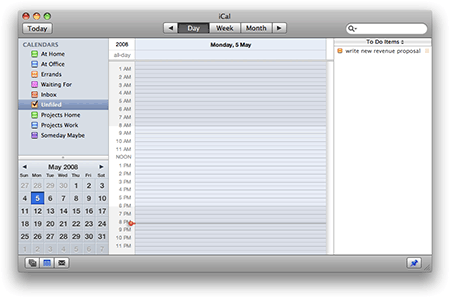
Well, yes and no. The iCal interface has had a makeover, and definitely looks and feels slicker than Tiger’s iCal. In addition, as with the new Mail, the interface feels more responsive, too.

The new iCal in Leopard

Unfortunately, the interface, despite its makeover, still sucks like a fleet of Hoovers. In fact - and Apple have had to try really hard here - the new interface is even less usable than Tiger’s. (more…)

Leopard review part 5: Mail

Saturday, May 3rd, 2008

Along with all of its 300 spiffy new features, many of the bundled Apple applications have had a makeover with the release of Leopard. In this multi-part review I’ll be concentrating on three of the main ones: Mail, iCal, and Preview. In this part: Mail.

When I watched the keynote introducing Leopard a couple of years back, I remember being distinctly nonplussed by the “improvements” to Mail. Now that I have my hands on the new Mail, I am still distinctly nonplussed. In many ways, Mail is one step forward, two steps back.

First, the good news. Searching is now lightning fast, thanks no doubt to the improvements to Spotlight. I managed to search my entire mail account - some 60,000 messages weighing in at just under 2GB - in around 10 seconds. Previously this would have taken over a minute. (This, along with the improvements to Spotlight itself and the new Quick Look, all help me work faster and get more done with my Mac, which is wonderful.) In addition, the Mail interface, like the Finder’s, generally seems more responsive than it did in Tiger: windows pop open with no delay, messages render quickly, folders instantly snap open.

My issues with Mail are twofold. Firstly, the new features in Mail are, on the whole, fairly useless (for me). Secondly, the new Mail is buggier than the Mail in Tiger.

New features

New Mail features include the ability to create Notes and To-Do items, decorate mail messages with stationery, and read RSS feeds with an integrated RSS reader. Let’s take a look at each of these.

Notes and To-Dos. I’m happy that Apple finally included a decent notes feature in Mac OS X, but what on earth are Notes and To-Dos doing in Mail? To-Dos are already in iCal. Notes would surely be better as either part of iCal, or as a separate app, replacing Stickies. It’s all rather confusing. (more…)

Leopard review part 4: New features: Quick Look, Time Machine, Spaces

Wednesday, April 30th, 2008

Apple’s latest Mac operating system, Leopard, has, we are told, over 300 new features. Many of these are minor, but in this part of my Leopard review I’ll concentrate on three of the big ones: Quick Look, Time Machine, and Spaces.

Quick Look

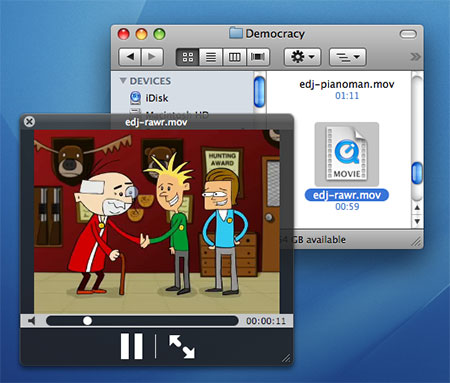
One of the nicest new features for me is Quick Look. Select any file in a Finder window, press the spacebar, and you’re instantly previewing the file in Quick Look. “Quick” is the operative word here; whereas it might take you 10-20 seconds to fire up Microsoft Word or NeoOffice to view a .doc file, with Quick Look you’re viewing it within 1 second of hitting the spacebar.

Leopard’s Quick Look feature in action

Exactly how the preview looks depends on the type of file:

  • Text files - whether that’s Word documents, PDFs, or plain text - open with a viewer that lets you scroll up and down through the whole document.
  • When previewing images, you get an Add to iPhoto button to add the displayed image to your iPhoto library.
  • An audio or movie file opens with a play/pause button and a scrubber control for jumping around within the content.
  • Font files display the entire alphabet rendered in the font

… and so on. In all cases, you can click a button to view the file in full-screen mode and, if you Quick Look multiple files at once, you can view a contact sheet of thumbnails to choose from (this, combined with the full-screen mode, looks great with photos!).

Quick Look uses plug-ins to work its magic; each file type needs an associated plug-in to be rendered in Quick Look. Naturally, Leopard ships with plug-ins for most common file types, and app developers are adding more all the time.

This is a wonderful way to quickly double-check that you’ve found the file you’re after, without having to launch an application. It’s a real time-saver. I just have to train myself to use it - currently I still instinctively want to double-click a file to open it. (more…)

Leopard review part 3: Finder and Spotlight

Tuesday, April 29th, 2008

I’ve talked about upgrading Mac OS X Tiger to Leopard, and about Leopard’s look and feel compared to Tiger’s. Here I’ll look at the new Leopard Finder, and talk about the Spotlight search feature in Leopard compared to its Tiger counterpart.

Finder in Tiger, while serviceable, always felt a bit clunky to me. Opening big folders was sluggish; the sidebar had its limitations; network shares were handled poorly. In particular, the way the entire system would hang when a network share dropped was appalling.

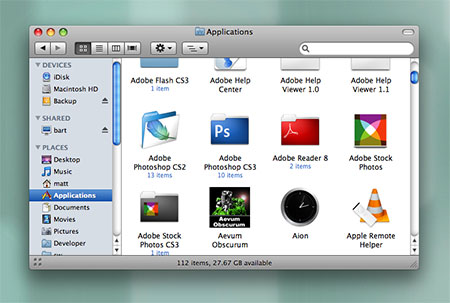
The Finder in Mac OS X Leopard

The Finder in Mac OS X Leopard

The Finder in Leopard is a definite improvement. Big folders open quickly. Preview icons take less time to render. The sidebar is nicer looking, and actually lists other computers in your network in the sidebar - this is a wonderful feature, as any network share is now only a couple of clicks away. But most importantly: No more system hangs when working with network shares! Not only do shares drop less often (despite Leopard’s Airport going up and down like a yo-yo - not sure why), but when they do, there’s no beachball for 10 minutes. This makes working on my wife’s Mac over the network actually usable now.

Going with the flow

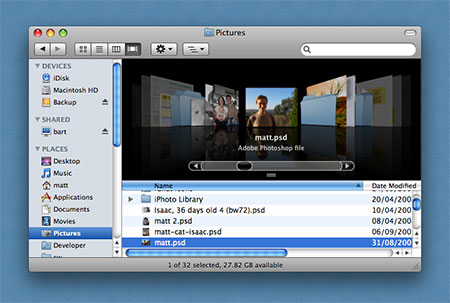
Leopard’s Finder in Cover Flow mode

Leopard’s Finder offers a fourth way to view files and folders: as well as the traditional Icons, List and Columns views, we now have Cover Flow view. This works just like Cover Flow in iTunes, but instead of viewing album covers, you see previews of the items in the current folder. In theory this is great, as you can flip through a folder’s contents without having to actually open files to view them. In practice, it’s good for things like photos, just about OK for PDFs (if you make the Finder window big enough), and pointless for applications (all you see is a huge version of the application’s icon). (more…)

Leopard review part 2: Look and feel

Saturday, April 26th, 2008

After finally upgrading both the Tiger iMacs in our house to Leopard last week, I can now see what I’m getting for my AUD $250. I’ll start with initial impressions of the new Mac OS X, then move onto specific apps and features in later parts.

The look

Leopard desktop background

Steve must have been watching a lot of Star Trek over the last couple of years. Leopard has a distinctly space-age feel, with its starry desktop background, glowing lights in the Dock, and Doctor Who-style Time Machine. Personally I’m not ecstatic about the look, but it’s inoffensive enough (though Time Machine’s animated swirly stuff is overkill and distracting).

Menu bar and Dock

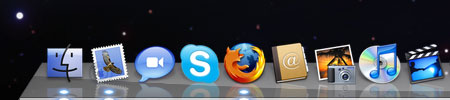
The Dock in Mac OS X Leopard

I actually really like the much-maligned translucent menu bar and shiny 3-D Dock. The translucent menu isn’t as distracting as I’d imagined, and I like the “solidity” of the Dock’s shelf. I particularly like the way application windows are reflected in the shelf. Utterly pointless, but beautiful. I’m not convinced by the glowing dots used to show active apps; sure, they fit in with the space-age theme, but they’re hard to notice. I keep thinking they’re part of the starry desktop background (which I know I could change, of course). I preferred the way Tiger used a black triangle to indicate an active program.

New-look windows and icons

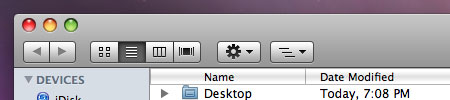
Finder window look in Leopard

Application windows have been unified into a consistent, reassuring dark grey shaded look. It’s a definite improvement on the mish-mash of window styles in Tiger (even amongst Apple’s own software). Leopard’s Close/Minimize/Zoom window buttons are slightly more saturated and “boiled sweet” looking than Tiger’s, and the pull-down menus in the menu bar now have rounded bottom corners - small details, but I like them.

I’m not a big fan of the Finder’s new staid blue folder icons, though they are elegant in their own way I suppose. I find the “special” folders (Desktop, Documents, Music, etc) a little hard to distinguish when they’re in the Dock. (more…)

Leopard review part 1: The upgrade process

Thursday, April 24th, 2008

I’ve put off upgrading to Leopard for months, largely due to the raft of problems and complaints from other Apple customers. Plus it didn’t seem to offer any compelling reason to upgrade from Tiger.

I finally decided that, since I blog about Macs all day long, I really should be running the latest and greatest Mac OS X. So last week I forked out for Leopard. I’ve installed it on both our iMacs and have been using it a few days. Already I have a ton of things to say, but I’ll kick off at the beginning: How well did the upgrade from Tiger to Leopard go?

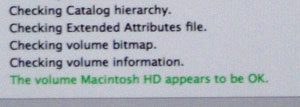
First I installed it on my wife’s iMac. I did the sensible stuff first: deactivated Photoshop (to save grief if I had to reinstall from scratch), repaired disk permissions, and verified the disk using Disk Utility on the Leopard DVD:

Verifying disk permissions

So far, so good.

(By the way, one thing you should definitely do before you upgrade to Leopard is check if you have a bit of software called Application Enhancer (APE) installed. It’s often automatically installed with other things, such as the Logitech mouse driver, so you might not realise it’s on your system. If you do have it, uninstall it, or upgrade it to the most recent version. Older versions of APE cause a dreaded blue screen of death (no, really!) when you try to boot Leopard.)

Choosing an upgrade method

The big decision when upgrading Mac OS X is: Do you do an Upgrade, an Archive and Install, or an Erase and Install? I found that Mac users seem to fall equally between the three camps, and the arguments rage. Here’s a summary: (more…)

Mac networking woes

Sunday, April 13th, 2008

Two very sick macs trying to talk to each otherOne of the things I used to hate about Linux was the way NFS mounts would hang for 10 minutes on one machine if the other computer crashed or lost its network connection. This, along with countless other niggles, was what made me switch to an “It Just Works” Mac.

Well, when it comes to network hangs and freezes, my Mac isn’t as bad as Linux. It’s worse.

I frequently need to connect to my wife’s iMac from my own (or vice-versa). To do this I go to Finder and choose Go > Connect to Server, then connect as myself and mount the remote iMac’s “Macintosh HD” on my iMac. So far so good.

Beachball blues

The problems start anywhere from 5 minutes later to a few hours later. The first sign is usually a dreaded spinning beachball in Firefox. Then I try to switch to Mail. Unresponsive. The Dock doesn’t work. Can’t switch to the Finder. Photoshop has frozen. Can’t do anything - it’s a beachball bonanza.

At least with Linux an NFS hang would only bring down one or two apps. With Mac OS X, the entire system is toast.

If I’m lucky, then after around 10-15 minutes, a dialog will pop up announcing “Server connection interrupted”, offering me a choice of just one button: Disconnect. At this point, the entire Mac springs back to life. If I’m unlucky, I need to power off one or both of the iMacs to get things moving again.

Is it so hard for Apple developers to write an operating system in a way that doesn’t bring the entire computer to a screeching halt, just because a network connection is interrupted? There’s nothing quite so frustrating as being in the middle of some work, only to have your entire computer freeze just because the stupid thing can’t talk to another computer at the other end of the house.

Rant over - I feel better now. :)

Is there a solution?

Does anyone know a way to stop these kinds of hangs? I’ve heard rumours that it’s “better” in Leopard (I currently use Tiger); if true then it might be the motivation I need to upgrade!

Spotlight in Tiger: More trouble than it’s worth?

Friday, January 25th, 2008

I really want to like Spotlight in 10.4. In theory it should be great: instant access to any file or app by typing a few words. In practice it’s sluggish as hell, making it almost unusable for me. Here’s how I tend to use Spotlight:

  1. Click the Spotlight icon.
  2. Start typing the name of the file I’m looking for.
  3. After typing about 5 letters, Spotlight locks up with a spinning beach ball for 30 seconds, then slowly starts to produce results.
  4. Meanwhile, I switch to the Finder and end up manually finding the file I was after before Spotlight has even finished telling me where it is.

To make matters worse, I recently bought a backup hard drive. Spotlight has decided this would be great fun to index, even though I don’t want it to. Here’s what I see practically every day:

Spotlight indexing my backup drive

Not only is this indexing unwanted, but it slows down my Mac for those 19 hours, and slows down Spotlight itself even further (if such a thing is possible). (more…)

Mystery of the disappearing disk space

Saturday, December 8th, 2007

Disappearing hard diskA few days ago, my wife’s iMac started running out of disk space. As in, ‘Zero bytes available’ in the Finder, with a warning dialog. This was quite odd, as it had a good 20GB free last week. I cleared out a few old video podcasts from iTunes to free up a couple of GB and thought nothing more of it.

The next day, I noticed that the free space had suddenly jumped up to 20GB again.

Then, yesterday morning, it ran out of space again. I cleared a few more big files from the drive, then did a ‘df -h’. 780MB free. I did another ‘df -h’. 779MB free. Then 778MB free. It was dropping at a rate of 1-2MB/second.

I knew that iTunes was subscribed to quite a few podcasts and, indeed, it had been downloading a couple of episodes recently. So I shut down iTunes and did another ‘df -h’. 772MB free… 771MB…

Must be the backup, I thought. I do a nightly rsync backup from my iMac to hers, and sometimes it’s still going during the day. But a ‘ps -aux | grep rsync’ on both machines brought up nothing. The backup wasn’t running.

Very strange. Maybe it was some sort of virus, worm, or rootkit that was downloading from the net? I shut down the AirPort network on the iMac to stop all network activity.

745MB free… 744MB… 743MB…

(more…)