November 20th, 2009
Castle Warriors from GameResort is a fun little iPhone/iPod Touch battle game that I’ve been playing with for a while. It falls under the Real-Time Strategy (RTS) category. Rather than waiting for your turn, you make decisions in real time as the action happens around you.

In many ways, Castle Warriors is a 3D version of the excellent Galcon. Instead of planets, you have towers. You start with all your soliders in 1 tower; tap it, then tap a target tower to move a certain amount (half by default) of your soliders to that tower. You can move to empty towers or enemy towers this way – if you move your soldiers to an enemy tower then they naturally attack the tower.

There are 2 play modes: a campaign mode where you move through 12 preset battle scenarios, and a quick play mode where you can replay unlocked scenarios with your own settings for battle length, number of your troops, and number of enemy troops. This is a nice touch which adds a degree of replay value to the game. Read the rest of this entry »
Posted in iPhone | Comments Off on Castle Warriors: A simple iPhone Strategy Game
October 27th, 2009
My esteemed colleague (and fellow Mac user) Simon Meek recently wrote a piece about why designers tend to use Macs. This got me thinking: Why did I buy a Mac? I’m more of a coder/”computer nerd” than a designer. And what sort of people (apart from designers) are Macs suited to?
Here are some handy guidelines to help you decide whether or not a Mac is right for you. First, some good reasons to buy a Mac…
You should buy a Mac if:
- You’re a creative type. Macs are very well suited to designers (as already mentioned), musicians, artists, photographers, and folks in the film and TV industries. Pretty much all the best creative software is available for the Mac (some of it is Mac-only), and many creative studios run mainly Mac networks.
- You want to edit your photos and movies. Macs come bundled with Apple’s iLife: a very nice, easy to use software suite that lets you edit photos and movies, and create slideshows and DVDs, right out of the box. No third party software to buy.
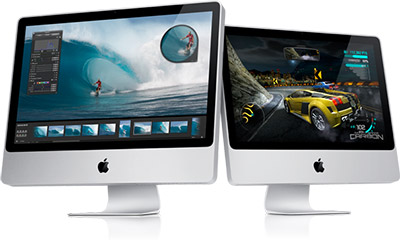
- You want a computer for the living room. This is partly personal taste, but Macs simply look nicer in the living room than pretty much any PC. iMacs are also whisper quiet so there’s no annoying fan noise, and Apple makes an effort to reduce the amount of cables needed (and even makes the cables look relatively pleasant!). You can even wall-mount an iMac these days, and a 27-inch version has just come out. Front Row and the Apple Remote are also a great way to watch movies and view slideshows from the comfort of the sofa.
- You want something that “just works”. Sure, Macs crash and burn just like any computer (sometimes quite spectacularly). On the whole, though, you’ll probably find a Mac to be easier to use and more trouble-free than the average Windows or Linux box. Apple pays a lot of attention to ease of use and stability; having control over both the hardware and the operating system really helps here too.
- You’re used to Unix. If you’re a fan of Unix-derivatives such as Linux or FreeBSD (but are fed up with tinkering with your computer all the time) then you’ll be right at home with Mac OS X. You can mess about on the command line; compile stuff with gcc; get stuck into shell scripting, and so on.
Macs aren’t for everyone though. Here are some reasons to buy a PC instead… Read the rest of this entry »
Posted in Cult of Mac, Hardware, Software | 3 Comments »
September 30th, 2009
A while back I came across InfoWorld’s list of the best open source Windows software. I thought I’d redress the balance by listing the best open source apps for the Mac!
These are apps that I’ve used myself and consider to be among the best. What do you think? Are there any other open source Mac apps that deserve to be added to the list?
Internet Apps
One of the best Web browsers out there, with all sorts of useful plugins.
Very capable email app along the lines of Mail.app.
Nice, easy-to-use FTP software. Just drag and drop files and folders between Cyberduck and the Finder.
Decent WYSIWYG Web page editor. A bit rough around the edges but does a good enough job, and doesn’t screw up your HTML as much as some editors do!
Instant messaging client that supports MSN Messenger, Yahoo! Messenger, Google Talk, AIM, ICQ, Facebook, Twitter and more. Looks great and is very customisable.
Nice-looking Twitter client with a cool transparent background. Easy to use (but then again, it’s hard to make a difficult-to-use Twitter app!). Read the rest of this entry »
Posted in Software | 10 Comments »
August 18th, 2009
No game stirs childhood memories for me as much as Space Invaders. Having wasted many hours during the late 70s pouring coins into the Space Invaders machine in the fast food place down the road, I would go to sleep with pixellated aliens marching relentlessly across my vision.
The original Space Invaders has inspired hundreds of similar arcade games over the years (not to mention Human Space Invaders!). The original Space Invaders publishers, TAITO, have released a couple of versions for the iPhone: Space Invaders (a clone of the original) and the marvellous Space Invaders Infinity Gene.
Space Invaders reloaded
 This game isn’t just Space Invaders with a few extra bells and whistles – it’s a complete rethink of the game. Putting aside the fact that it’s based on one of the classic arcade games of all time, Space Invaders Infinity Gene is one of the best arcade shooters on the iPhone that I’ve ever played.
The game starts much like the original game, but quickly evolves into a much more fast-paced affair, with all sorts of baddies zooming over the screen. You also get to move your ship up and down as well as the usual left and right (now there’s progress!). It can get quite hectic at times, but fortunately you can move the ship by touching anywhere on the screen, so your finger doesn’t get in the way. You don’t have to worry about shooting either, as the ship auto-fires constantly.
Each level features the old “flying saucers across the top” from the original Space Invaders; however rather than giving you extra points, these drop power-ups when you shoot them. Power-ups increase the strength of your ship’s firepower – very useful near the end of a level (especially as many levels feature bosses at the end). Read the rest of this entry »
Posted in iPhone | Comments Off on Space Invaders Infinity Gene Review: An Arcade Classic Rebooted
August 5th, 2009
 Hmm… not a great day for my iPhone last week. Its wi-fi was playing up so I decided to power cycle it. After switching on it hung on the Apple logo for 4-5 minutes. Power cycled again – same problem. Sounds like a common issue. Here are some helpful suggestions for fixing it. Anyway I was lucky – I connected the iPhone to the Mac (with iTunes running) and, after a couple more restarts, the iPhone booted successfully.
I say “successfully” in that it got to the Home screen. But then every third-party app I tried to launch quit immediately back to the Home screen! (Apple apps were OK.) Once again, this sounds like a common problem. Ouch. In my case I managed to fix it by connecting the iPhone to the Mac, running iTunes, right-clicking the iPhone in the left-hand pane and choosing Restore from Backup. It took ages and hung right near the end (I had to yank the USB cable out of the phone to stop it), but after that all apps launched no problem.
If you’re reading this because you have this problem, and the above solution doesn’t work for you, you may need to do a full system restore (as described in the linked discussion thread above).
Nasty. Hope it doesn’t happen again…
Posted in iPhone | 2 Comments »
July 27th, 2009
 One really nice thing about Mac OS X is the ease with which you can automate tasks. This comes down to AppleScript – an easy-to-learn scripting language for getting apps to do things – and Automator, a drag-and-drop tool for creating a series of automated actions, known as a workflow.
In this beginner Automator tutorial I’ll walk you through the process of creating a simple Automator workflow, from start to finish. The workflow, called “Zip and Send”, will zip up selected file(s) and automatically email the resulting zip archive to an address you specify.
Opening Automator
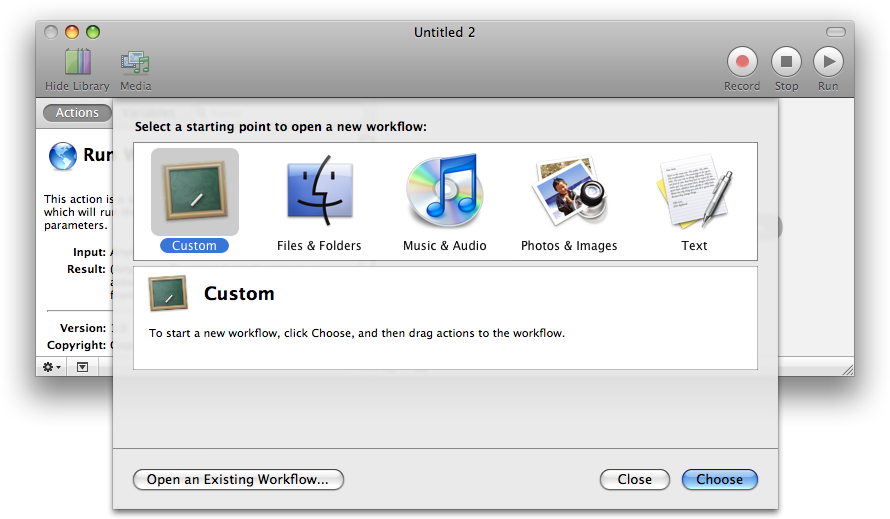
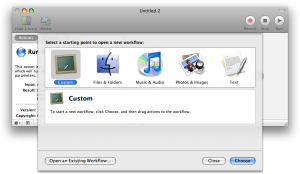
To run Automator, open your Applications folder in the Finder and double-click the Automator icon. When Automator starts, you can choose a starting point for a new workflow:
(Click image to enlarge)
These options just provide basic templates to get you going. For now, just choose the Custom icon, as shown above, then click Choose. Read the rest of this entry »
Posted in Mac tips & tricks | 39 Comments »
July 9th, 2009

To celebrate the 1st anniversary of the App Store – launched on 11 July last year – the folks at Apple have come up with a list of their top iPhone apps and games. Interesting to see which apps they enjoy using themselves.
I have a few of my own favourite apps to add:
- Stanza (ebook reader: my most heavily-used app)
- Galcon Lite (fast-paced space strategy game – still a classic)
- Tangram Pro (puzzle game)
- Frotz (interactive fiction engine)
- TyroTuner (does a great job of helping you tune a guitar through the iPhone’s mic – looks great too)
- Wolfenstein 3D Classic (A great port of the original considering the limitations of the iPhone’s small touch-screen)
- BOMRadar (Aussie weather radar app – perfect for seeing where the rain is!)
- Twinkle (location-aware Twitter client)
What are your favourite App Store apps and games?
Posted in iPhone | Comments Off on Apple’s Favourite iPhone Apps
July 1st, 2009
 Are you new to the Mac, or thinking of diving into the world of Macs? The following is a list of technical Mac terms that you may find handy. I came across most of these terms myself when I first bought a Mac, so I thought it’d be useful to gather them together into this glossary.
I hope you find it useful! If you’d like to see a term added to the list – or you think one of my definitions needs correcting – please let me know in the comments below. Thanks! 🙂 Read the rest of this entry »
Posted in Mac tips & tricks | 7 Comments »
June 18th, 2009
At long last, version 3.0 of the Phone OS has landed. There are already some excellent in-depth reviews, such as the ones on iLounge and Ars Technica, so I won’t go into lengthy details here. Instead, here are some first impressions of the new OS, both good and bad…
Select, cut, copy and paste
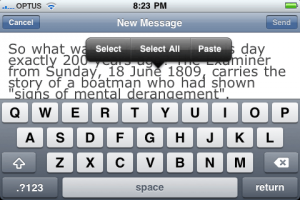
A clipboard was one of my most wanted features, and it’s wonderful to finally see it in action. To start with I tried selecting a paragraph of text in Safari, at which point Safari bombed out and returned to the Home screen. Oops! Not a fantastic start. However I tried again with a different page and it was fine. It’s relatively easy to use, considering the constraints of a small touch-screen: tap and hold to bring up the magnifier, then release and choose Select, Select All, or Paste:
Click image to enlarge
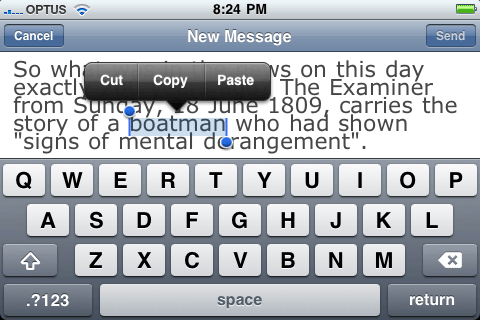
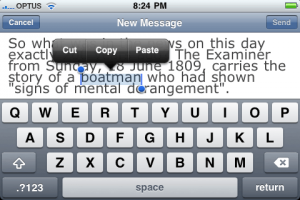
You can also double-tap a word to select it, then choose Cut, Copy, or Paste:
Click image to enlarge
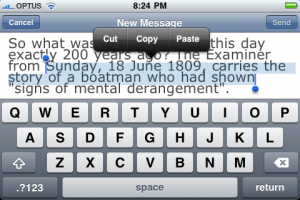
To change a selection, tap and drag its end markers:
Click image to enlarge
Read the rest of this entry »
Posted in iPhone | 11 Comments »
June 9th, 2009
I enjoy the odd Mac/PC role-playing game such as Baldur’s Gate and Diablo, so I thought I’d see what RPGs are available for the iPhone. There are a few out there, including Vay (which I hope to review soon), but the one that caught my eye was the recently-launched Underworlds from Pixel Mine. So I took it for a spin.
Underworlds is in many ways a “Diablo lite” for the iPhone. It’s an isometric 3D hack-and-slash affair, with a single character that you move around various dungeons, killing monsters and picking up goodies.
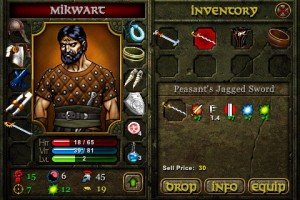
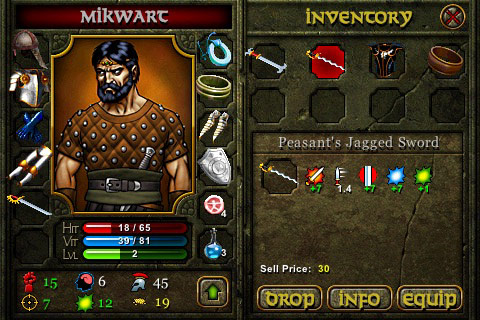
Click image to enlarge
The graphics look great, even on the small screen, and the sound effects and music are suitably atmospheric. There’s a good range of scenery, items and monsters (although the monsters are very much of the “evil undead” variety) and the game is generally fun to play.

Click image to enlarge
Read the rest of this entry »
Posted in iPhone | 1 Comment »


 Firefox
 Thunderbird
 Cyberduck
 KompoZer
 Adium
Adium NatsuLion